
Virtual try-on app for Shopify
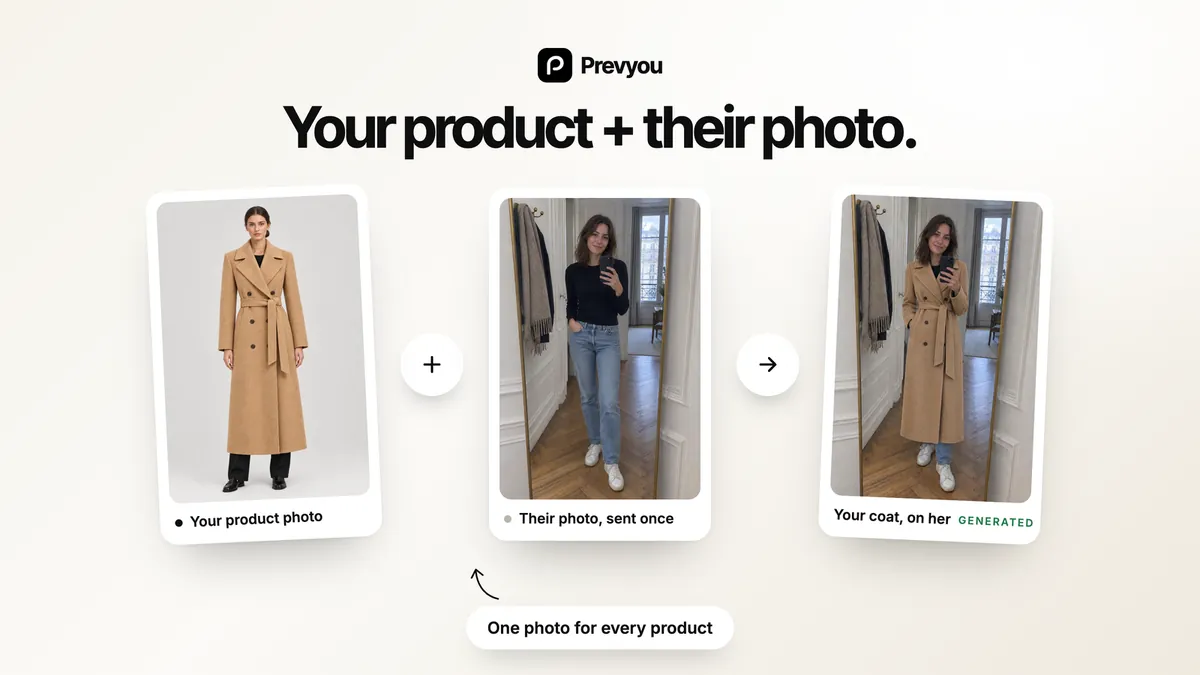
Prevyou adds a “Try it on me” button to your Shopify product pages. Shoppers upload one photo and see your clothing, shoes, bags, eyewear, jewelry or watches on themselves in about 15 seconds, then add the item, or the whole look, to the cart. It installs from the Shopify App Store and turns on in your theme editor, with no code and no 3D models.
How does virtual try-on work on Shopify?
The shopper taps “Try it on me”
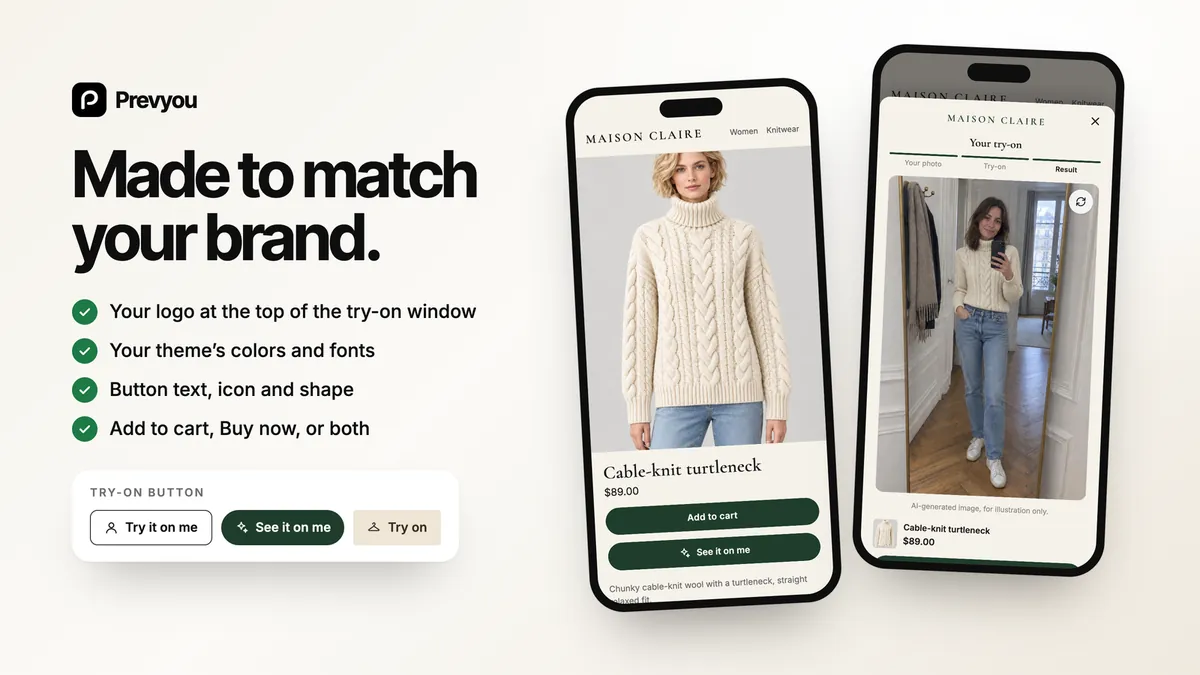
The button sits under Add to cart on your product pages. You can also show a small Try on badge on product cards on the home page, in collections and in the cart.
They add one photo
After a consent box, they take or choose a photo: full length for clothing, shoes and bags, face and shoulders for eyewear, necklaces and earrings, hand and wrist for rings, bracelets and watches.
They see the product on themselves
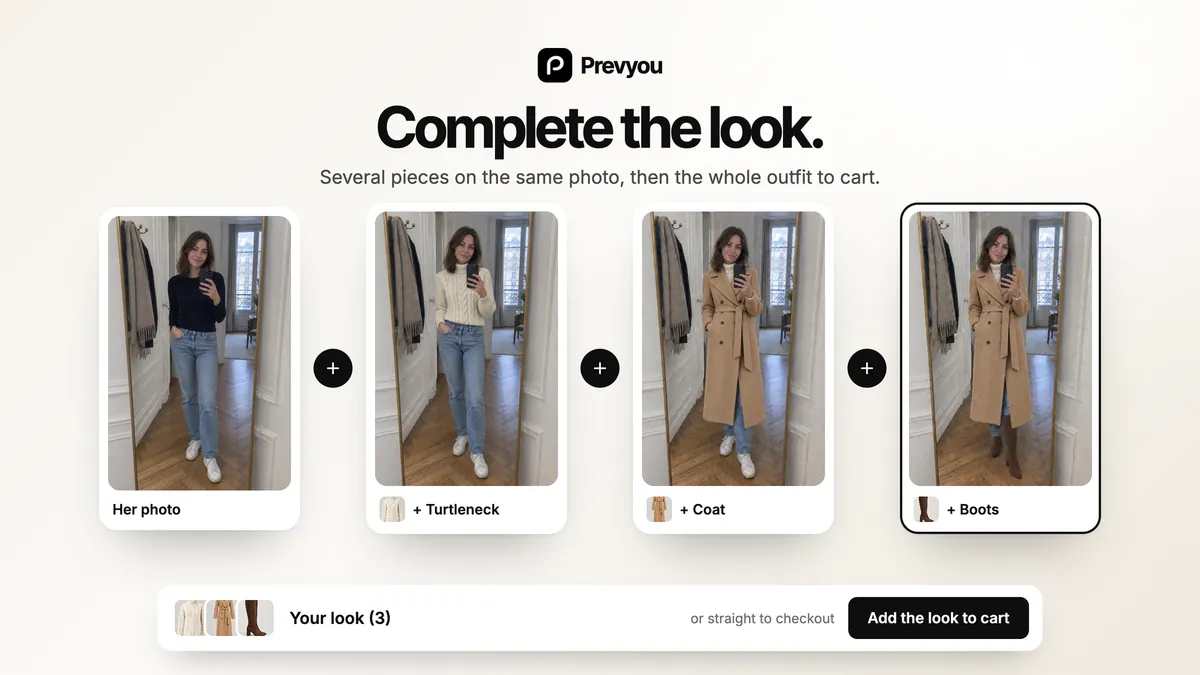
The result appears in about 15 seconds, built from the product photo already in your store. They can add another piece to the same photo to complete the look, then add everything to the cart.
How do you install it without code?
Install Prevyou from the Shopify App Store and choose a plan. Pay as you go starts with 10 free try-ons every month.
From the Prevyou dashboard, open the theme editor: the Prevyou app embed is already selected. Click Save.
The button appears under Add to cart on your product pages, in your theme’s colors and fonts. To place it elsewhere, add the Prevyou block to your product template.
Try it on one of your products with your own photo from the dashboard. Your test try-ons are free (3 per month).
Prevyou is a theme app embed: it never edits your theme files, and uninstalling the app removes it from your theme. We test it on more than 50 Shopify themes (Online Store 2.0), on desktop and mobile.
What does it look like in your store?
How much does it cost?
Pay as you go
10 free try-ons every month, then $0.20 per try-on from the 11th to the 100th, $0.15 up to 200, $0.10 up to 800 and $0.09 after that.
Starter
$29/month
250 try-ons included, then $0.15 per extra try-on
Growth
$59/month
600 try-ons included, then $0.12 per extra try-on
Pro
$99/month
1,200 try-ons included, then $0.10 per extra try-on
- Billed through your Shopify invoice, in US dollars.
- Failed try-ons are never billed.
- You set a monthly spending cap.
- Every feature is included in every plan.
Frequently asked questions
Do I need to code or edit my theme?
No. Prevyou turns on as an app embed in the theme editor: one click, then Save. It never edits your theme files, and uninstalling the app removes it from your theme.
Which Shopify themes does it work with?
Online Store 2.0 themes, such as Dawn and Horizon. We test the button and the try-on window on more than 50 Shopify themes, on desktop and mobile.
Which products can shoppers try on?
Tops, bottoms, dresses, jumpsuits, jackets, coats, shoes, bags, eyewear, necklaces, earrings, rings, bracelets and watches. Products that can’t be worn, such as candles or gift cards, are left out automatically, and you choose which products and collections show the button.
Do I need 3D models or new product photos?
No. Prevyou uses the product photos already in your Shopify store. A photo of the item alone works best, and a photo on a model also works because only the product is used.
How long does a try-on take?
About 15 seconds from the photo to the result, on mobile or desktop. Shoppers can then try another product on the same photo without uploading it again.
What happens to shopper photos?
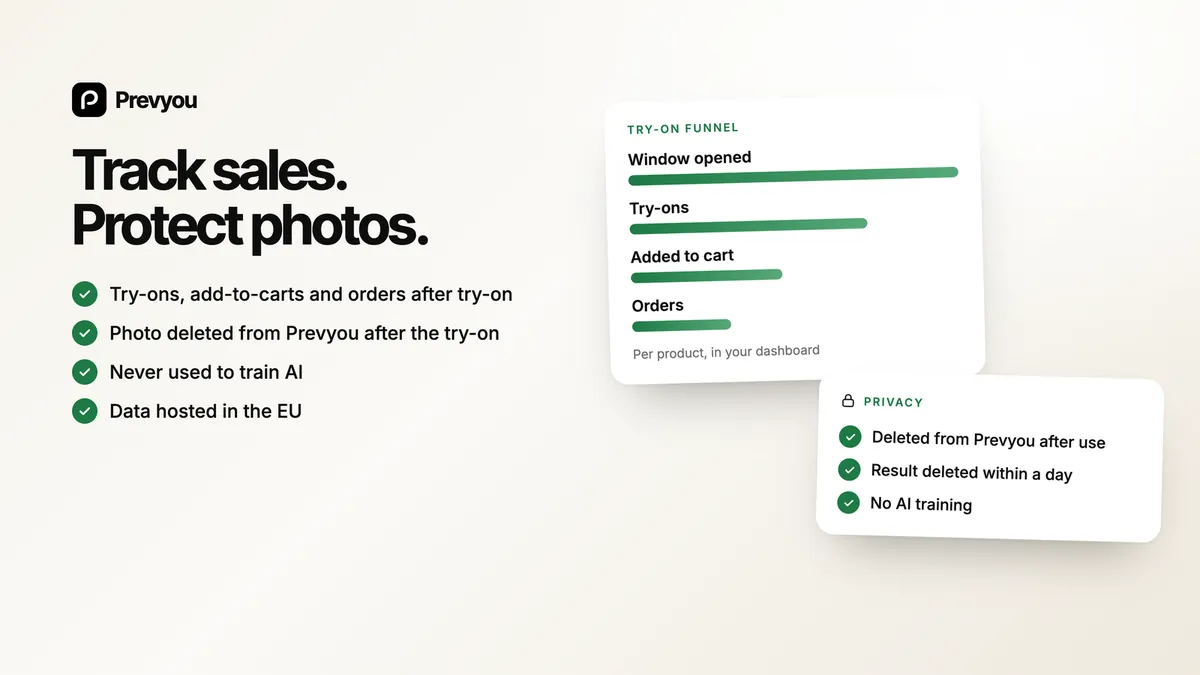
Shoppers accept a consent box before uploading. Their photo is deleted from our servers as soon as the result is ready, the result within 24 hours, and photos are never used to train AI. Our database and storage are in the EU; images are generated by our AI providers (mainly OpenAI), as listed in our privacy policy.
How is Prevyou billed?
Through your Shopify invoice, in US dollars. Pay as you go includes 10 free try-ons every month, failed try-ons are never billed, and you set a monthly spending cap.
Which languages does the try-on window speak?
English, French, Spanish, German, Italian, Dutch and Portuguese (Brazil and Portugal). The window follows your store’s language, and the dashboard follows your Shopify admin.
Add virtual try-on to your Shopify store
Free to install, 10 free try-ons every month, set up in your theme editor without code.
Related guides
Best virtual try-on apps for Shopify (2026) →
Seven virtual try-on apps for Shopify compared on 11 November 2026: price, products covered, installation, free plan or trial. Prevyou included.
How AI virtual try-on works for Shopify stores →
One shopper photo + your product photo = a try-on image in about 15 seconds. Which products work, what your store needs, the limits and the cost.
AI virtual try-on vs AR try-on: which one for your Shopify store? →
AI photo try-on and AR try-on (3D, live camera) compared for Shopify merchants: products covered, assets needed, setup, speed and cost.